

The LiteSpeed Cache vs WP Rocket question comes up on almost every speed project I take on, and most comparisons make it harder than it needs to be. Both plugins can make WordPress much faster.
What actually separates them is your web server. LiteSpeed Cache is free and works remarkably well on the right server. WP Rocket costs money, but it runs almost anywhere with very little setup. Pick the wrong one for your hosting and you either waste its best feature or pay for something you already had.
You can settle this in about two minutes, then use the rest of this guide to set up your choice without breaking your menus, forms or checkout.
The question that decides it is what server your host runs
LiteSpeed Cache does its fastest work inside the web server. Its automatic page caching is listed as a LiteSpeed exclusive feature, so you need OpenLiteSpeed, a commercial LiteSpeed server, LiteSpeed-powered hosting or the QUIC.cloud CDN.
On plain Apache or Nginx without QUIC.cloud, the plugin still minifies files, lazy loads images and cleans your database. It simply can’t handle the one job most people install it for.
WP Rocket takes a different approach. It generates cached HTML files that the server delivers without loading WordPress for most visitors, and it supports Apache, NGINX, Microsoft IIS, LiteSpeed and OpenLiteSpeed.
Checking your server takes less time than reading another comparison:
- Open your site in Chrome and press F12
- Go to the Network tab and reload the page
- Click the first request, which is the page itself
- Look through the Response Headers
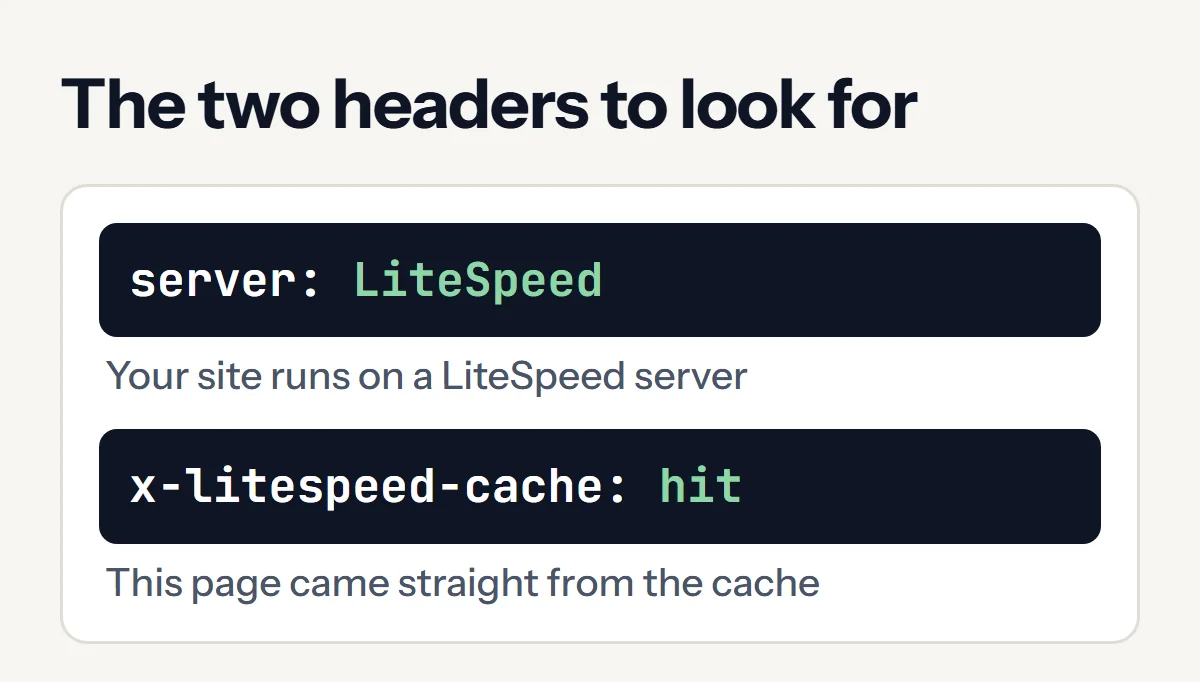
If you see neither header, ask your host’s support team which web server your plan uses. A CDN can hide the real server name, so a quick support question is sometimes the only reliable way to know.
LiteSpeed Cache vs WP Rocket, side by side
Once you know your server, these are the differences you’ll actually notice day to day.
Price
LiteSpeed Cache is free, and it sits among the most popular performance plugins on WordPress.org with more than 7 million active installs. A few extras run through QUIC.cloud, including image optimization, Critical CSS and unused CSS removal. QUIC.cloud gives each domain a free monthly allowance for its CSS services, and you can either wait for it to refill or buy more.
WP Rocket is a paid plugin. When I checked its pricing page on November 23, 2026, the listed yearly plans broke down to these monthly rates before any discount:
- Single at $5 a month for 1 website
- Plus at $10 a month for 3 websites
- Multi from $25 a month for 50 websites
The page also showed a first-year discount and noted that licenses renew at the regular price afterward. Plan your budget around that renewal rate because it’s what you’ll pay every year after. There’s a 14-day free trial if you want to test it on your own site first.
Ease of use
This is where WP Rocket earns its price tag. Its settings fit across a handful of screens, the defaults are cautious, and most site owners can wrap up the setup without breaking anything.
LiteSpeed Cache gives you far more granular control across many tabs. That level of access is great when you know what every option does, though it also makes it easy to flip one switch that quietly breaks a mobile menu or a contact form.
Features
The two plugins overlap more than their marketing suggests. Both take care of page caching, browser caching, preloading, CSS and JavaScript optimization, lazy loading, delayed JavaScript, unused CSS removal and database cleanup.
LiteSpeed Cache goes further in a few areas that matter on busy or dynamic sites:
- Server-level page caching with automatic purging of related pages
- A private cache for logged-in users
- Separate desktop and mobile cache views
- Support for Redis or Memcached object caching, if your host provides it
- Image optimization with WebP and AVIF through QUIC.cloud
- Edge Side Includes, or ESI, which caches a page while keeping small private parts like a cart live
One catch many comparisons miss is that ESI isn’t available on OpenLiteSpeed. If your VPS runs the free open-source server, don’t pick the plugin for that feature.
WP Rocket’s main advantage is less flashy. It offers broad compatibility with common themes, page builders and hosts inside an interface that’s tough to misconfigure. If LiteSpeed’s server cache is active on your host, WP Rocket also purges it automatically whenever its own cache clears.
Managed hosting
Many managed WordPress hosts already cache pages at the server level, so adding a second page cache creates risk without adding speed.
WP Rocket maintains a hosting compatibility list specifically for this. On certain platforms and setups, it switches off its own page cache automatically while keeping its file optimizations active. Using LiteSpeed Cache on a managed host that doesn’t run LiteSpeed gives you much less value.
My recommendation
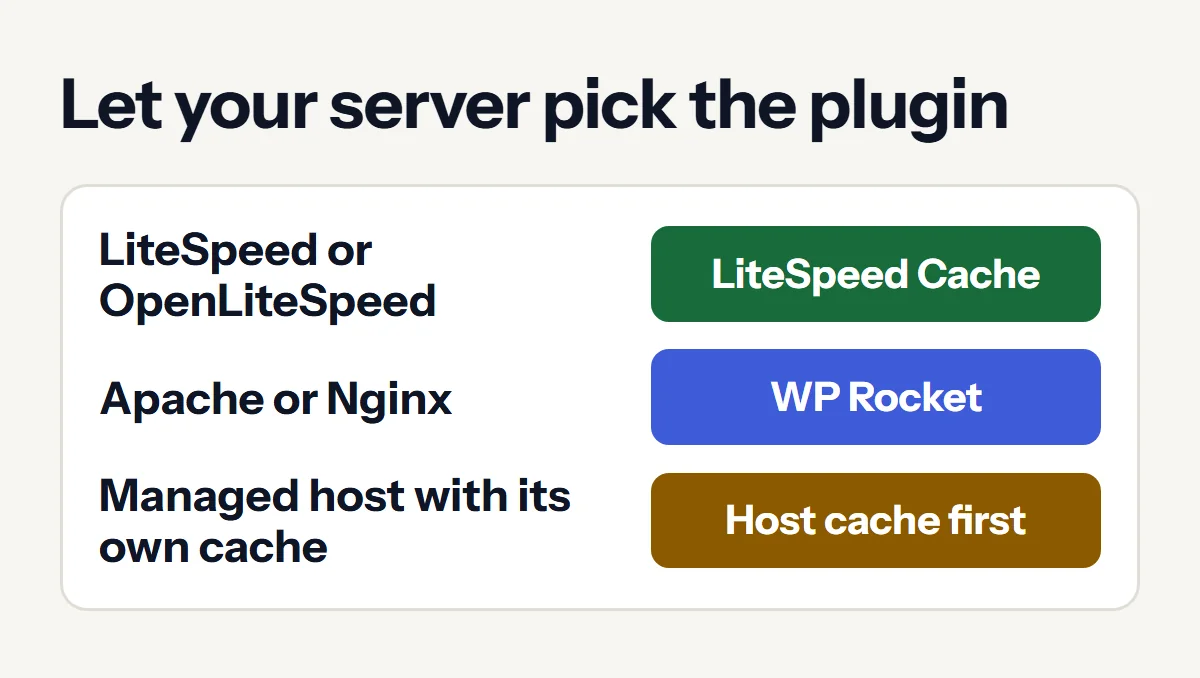
If your host runs LiteSpeed, use LiteSpeed Cache. Server-level caching is tough to beat, and the plugin costs nothing. My own site runs this exact setup, so I measured what the cache really does.
I requested the same article 15 times from the cache and 15 times with a unique URL that forced a cache miss. Every cached request returned a hit, and every forced request returned a miss.
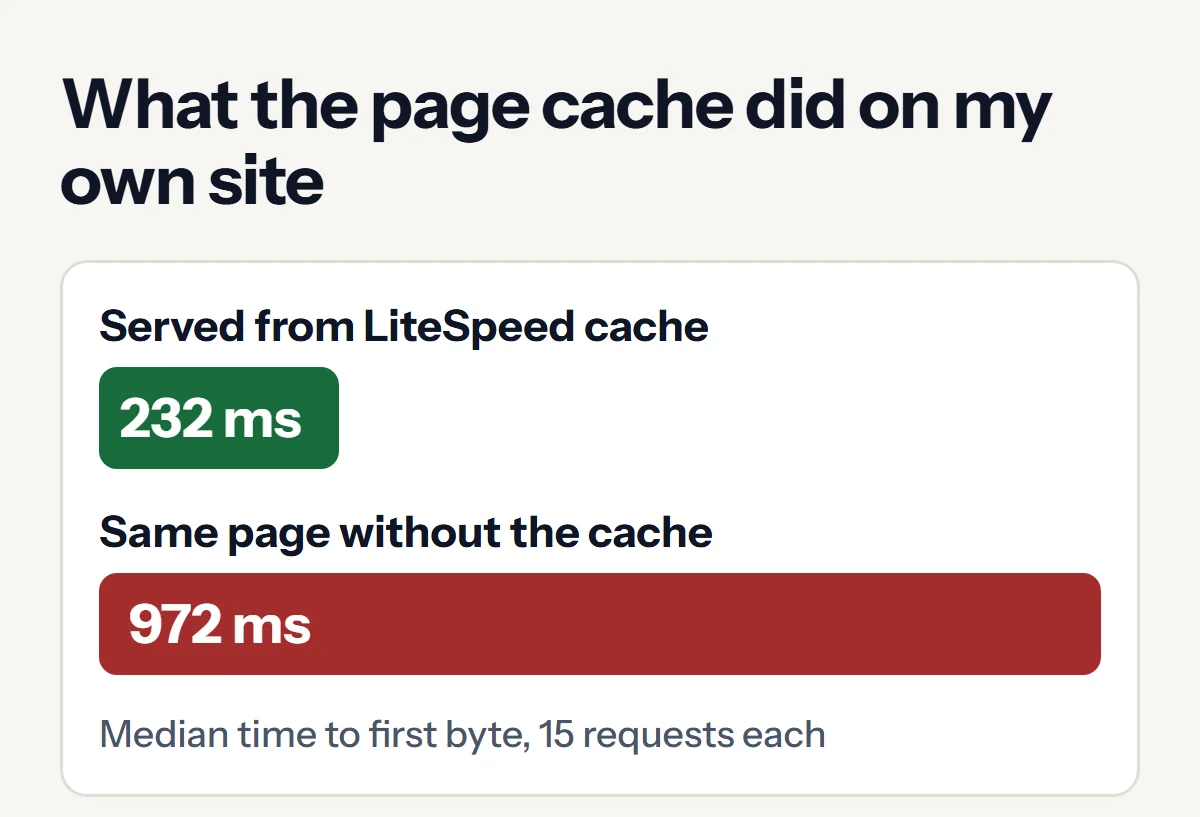
That’s roughly four times faster to the first byte. Keep in mind that this only measures server response, so it won’t tell you how quickly images and scripts load afterward.
On Apache or Nginx without server caching, WP Rocket is the simplest reliable choice. On a managed host with its own cache, stick with the host’s cache first and add WP Rocket only if you need its file optimizations. Check your host’s list of allowed plugins before installing anything.
Whatever route you take, never run two page caches at the same time. Pairing LiteSpeed Cache with WP Rocket, or running either one alongside another cache plugin, causes stale pages and bugs that are miserable to track down.
Keep your expectations realistic too. Images, scripts, fonts and your hosting quality still decide most of your load time. On the speed projects I take on, caching is just one piece of a wider job that usually includes a lighter front end and a leaner plugin stack.
What about other caching options?
LiteSpeed Cache and WP Rocket aren’t your only choices, and sometimes neither one is the right fit.
Your host’s own cache comes first if you have one. It’s tuned for that specific platform, and when it works properly there’s rarely a good reason to replace it.
WP Super Cache and W3 Total Cache are long-standing free alternatives. WP Super Cache keeps things straightforward, while W3 Total Cache offers deep configuration and, like LiteSpeed Cache, is easy to misconfigure.
Several newer paid plugins now compete closely with WP Rocket. Judge them the exact same way by checking whether their page cache fits your server and whether their defaults are safe.
Other popular performance tools focus purely on script management and asset cleanup without any page caching at all. They pair nicely with a host cache, though they can’t replace one.
The core rule stays the same. Stick to one page cache, match it to your server, and test everything around it.
Settings that cause the most trouble
Whichever plugin you pick, a handful of options cause most of the breakage I run into. Turn them on one by one and test your site after each change:
- Combining or minifying JavaScript, which can break sliders, menus and forms
- Delaying JavaScript, which can hold back chat widgets, tracking and popups until a visitor interacts
- Removing unused CSS, which can strip styles needed for open menus or form error messages
- Caching logged-in users or WooCommerce pages, which demands careful configuration or none at all
After every adjustment, check your forms, menus, mobile layout and, on an online store, the full checkout.
Verify your analytics and ad tracking too. A delayed or combined script can quietly stop a conversion tag from firing, and you might not spot it until your ad reports look off.
If a cache setting has already broken something on your live site, I can find and fix the error quickly. For a complete setup from scratch, take a look at my WordPress speed optimization service.
Checklist
Here’s the entire setup in the exact order I’d tackle it:
- Check your server in the response headers
- Use LiteSpeed Cache on LiteSpeed, otherwise WP Rocket or your host’s cache
- Remove any other page cache plugin
- Exclude cart, checkout and account pages
- Enable risky optimizations one at a time
- Test forms, menus, tracking and checkout after each change
Two guides pair well with this one: which Elementor performance settings to turn on, and which to skip and WebP vs AVIF for WordPress, and the format I actually use.
FAQ about choosing a cache plugin
Can I use LiteSpeed Cache on a non-LiteSpeed server?
Yes, for general features like minification, lazy loading and database cleanup. Automatic page caching requires a LiteSpeed server or QUIC.cloud CDN, so a different caching option usually makes more sense.
Is WP Rocket worth paying for if LiteSpeed Cache is free?
On a LiteSpeed server, usually not. On other servers, the setup time it saves and the lower risk of breaking your layout are worth the cost for most businesses.
Can I use either plugin with Cloudflare?
Yes. Let only one tool minify your files, and make sure clearing your WordPress cache also purges Cloudflare so visitors never see stale pages.
Which is better for WooCommerce?
Both plugins can run a store safely as long as cart, checkout and account pages stay excluded from the cache. On a commercial LiteSpeed server, ESI gives LiteSpeed Cache an edge for stores running complex carts.
Will switching plugins hurt my site?
Not if you follow the right sequence. Deactivate and delete the old plugin first, clear every layer of cache, and confirm its leftover rules are gone from your .htaccess or server configuration before activating the new one.
Not sure which caching setup fits your host? Ask me for a free website review and I’ll check your server and recommend one setup, not three.